❓ What’s the difference: Terminal commands vs. PowerShell?
1. Windows Terminal (CMD / traditional commands)
- CMD is a text‑based command interpreter: it runs simple commands (
dir,ping,ipconfig,shutdown). - Output is plain text; you must parse it with
findstrto filter or search. - Great for quick one‑liners and legacy scripts, but limited for automation and object‑driven workflows.
2. PowerShell
- PowerShell is a modern scripting language and shell built on .NET.
- It works with objects, not just text; each command returns structured data (properties like
Name,Length,Path,Id,CPU, etc.). - Uses verb‑noun cmdlets (
Get‑Item,Get‑Process,Get‑Service,Move‑Item,Start‑Service). - You can pipe objects between cmdlets and filter/sort them without external tools.
3. Windows Terminal (the UI)
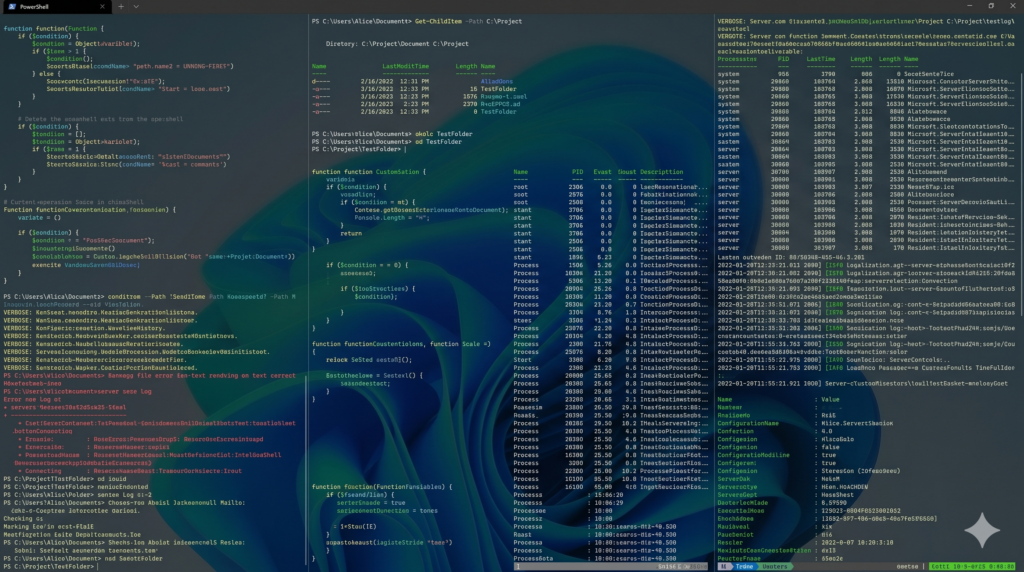
- Windows Terminal is a terminal emulator (like a modern “console window”) that can host CMD, PowerShell, WSL, SSH, and more in tabs.
- CMD and PowerShell can both run inside Windows Terminal; the Terminal is just the “visual layer.”
In short:
- CMD = simple text‑based shell for basic commands.
- PowerShell = advanced, object‑based shell for automation and scripting.
- Windows Terminal = a better UI that can run either.
If you want real automation and scripting power, you use PowerShell inside Windows Terminal.
💡 Why PowerShell is powerful
- Everything is an object:
For example,Get‑Processreturns objects with properties likeName,Id,CPU,Memory, which you can pipe to other commands. - Built‑in scripting:
You can write functions, loops, error‑handling, and complex logic in.ps1scripts. - Deep Windows integration:
PowerShell can manage services, registry, event logs, Active Directory, Azure, Microsoft 365, Hyper‑V, and more with dedicated modules.
Now, let’s look at 10 essential PowerShell commands, grouped by Power‑Users and Developers.
🔧 Power‑User PowerShell Commands
These are for system admins, IT consultants, and power‑users who manage Windows environments.
1. Get‑Process and Stop‑Process
List running processes and stop them cleanly.
powershell# List all processes
Get-Process

# Show only Chrome processes
Get-Process chrome

# Stop all Chrome processes
Get-Process chrome | Stop-Process -Force
Use case:
- Kill stuck or high‑CPU apps.
- Cleanup before a system restart or maintenance.
2. Get‑Service and Restart‑Service
Inspect and manage Windows services.
powershell# List all services
Get-Service

# Get status of a specific service
Get-Service wuauserv  # Windows Update

# Restart a service
Restart-Service wuauserv
Use case:
- Restart network or update services after configuration changes.
- Script service validation for health checks.
3. Get‑EventLog / Get‑WinEvent (Windows logs)
Read Windows event logs directly from PowerShell.
powershell# Classic event log (System)
Get-EventLog -LogName System -EntryType Error -Newest 10

# Modern event log (Security, Application, etc.)
Get-WinEvent -LogName Security -MaxEvents 10
Use case:
- Check for critical errors or failed logins.
- Automate log‑collection scripts for compliance or monitoring.
4. Get‑Item, Get‑ChildItem, Move‑Item
File and folder operations with PowerShell.
powershell# List files and folders (like dir)
Get-ChildItem C:\Projects

# Get details of a file
Get-Item C:\Projects\report.pdf

# Move files
Move-Item C:\Temp\*.log C:\Logs\
Use case:
- Script bulk file moves, renames, and cleanups.
- Replace
robocopy‑style workflows with readable PowerShell pipelines.
5. Get‑NetIPAddress and Get‑NetIPConfiguration
Inspect network configuration.
powershell# Show all IP addresses
Get-NetIPAddress

# Show detailed network configuration
Get-NetIPConfiguration
Use case:
- Verify IP changes after DHCP or manual configuration.
- Script network checks before deployment.
💻 Developer‑Focused PowerShell Commands
If you’re a developer on Windows, these will feel very familiar.
6. Invoke‑WebRequest / Invoke‑RestMethod
Call HTTP APIs directly from PowerShell (like curl in CMD, but more powerful).
powershell# GET request
Invoke-WebRequest -Uri "https://httpbin.org/get"

# POST JSON to an API
Invoke-RestMethod -Uri "https://api.example.com/webhook" `
  -Method Post `
  -Body '{"status":"deployed"}' `
  -ContentType "application/json"
Use case:
- Test APIs without Postman or a browser.
- Script webhooks or CI/CD notifications.
7. git inside PowerShell
Git works seamlessly in PowerShell, and you can combine it with PowerShell variables.
powershell# Check current branch
git rev-parse --abbrev-ref HEAD

# Example: create a release‑tag automatically
$Version = "v1.0.1"
git tag $Version
git push origin $Version
Use case:
- Automate tagging, merging, and release scripts.
- Manipulate Git state with PowerShell logic.
8. Start‑Process for running apps
Launch executables or scripts with specific settings.
powershell# Start Chrome
Start-Process "chrome.exe"

# Run a script minimized
Start-Process "powershell.exe" -ArgumentList "-File C:\Scripts\deploy.ps1" -WindowStyle Minimized
Use case:
- Start services or GUI tools from an automation script.
- Run headless scripts without visible windows.
9. Import‑Module and Get‑Command
Extend PowerShell with modules and discover what’s available.
powershell# Import a module (for example, for Azure)
Import-Module Az

# List all available commands in PowerShell
Get-Command

# List only cmdlets in a module
Get-Command -Module Az
Use case:
- Use advanced modules for cloud, networking, or security.
- Explore what PowerShell can do beyond built‑in cmdlets.
10. Measure‑Command for performance checks
Time how long a command or script takes to run.
powershell# Measure how long a script takes
Measure-Command {
    Get-ChildItem -Path C:\Projects -Recurse -Filter *.log
}
Use case:
- Profile slow‑running scripts or backups.
- Optimize file‑search or export operations.
Bonus: General‑Purpose PowerShell Tips
Even if you’re not a full‑time admin or dev, these are useful:
Get‑Help <cmdlet>– shows detailed help for any cmdlet.Get‑ChildItem | Where‑Object { $_.Name -like "*.txt" }– filter files in memory, likefindstrbut with objects.Set‑ExecutionPolicy RemoteSigned– lets you run your own.ps1scripts.
How to Use PowerShell in Windows Terminal
- Open Windows Terminal.
- Create a new profile for PowerShell (or use the default one).
- Paste and run any of the above scripts directly.
- Save useful scripts as
.ps1files and call them from the Terminal.
Final Thoughts
PowerShell is not just “CMD v2”; it’s a first‑class scripting environment that gives you:
- Object‑oriented pipelines (no more parsing text with
findstr). - Deep Windows integration (services, registry, events, logs).
- Powerful automation for admins, devs, and IT consultants.

At JituOnline dot in, he explores the intersection of cutting-edge technology and human lifestyle... whether it's decoding the latest AI models or reviewing the gadgets that define our era, his mission is to make the "limitless realm" of tech accessible to everyone... Join him as he uncovers how tomorrow’s automation elevates today’s living...
- Python’s Magic: How Few Lines of Code Replace Big Code Blocks in Other Languages - June 16, 2026
- Software Development Tools in 2026: What’s Hot, What’s Out - June 1, 2026
- Monthly Roundup of AI Tools in May 2026 - June 1, 2026