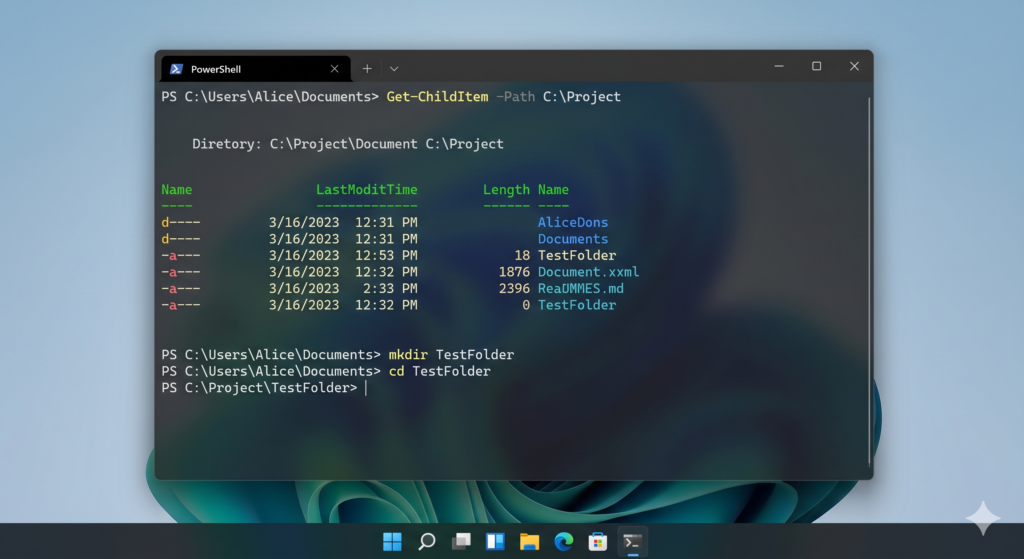
The Windows Terminal is more than just a legacy command prompt—it’s a powerful automation and debugging tool that many IT professionals and developers underuse. While you can navigate folders in File Explorer, the Terminal lets you do bulk operations, remote debugging, and system‑level tuning that GUIs simply can’t match.
In this post, we’ll cover 10 essential Windows Terminal commands, grouped into:
- Power‑User commands (system control, cleanup, remote‑admin).
- Developer commands (version control, package management, port‑level debugging).
- General‑purpose commands everyone can use.
Each comes with a concrete example you can test directly in your Terminal.
🔧 Power‑User Commands
These are for people who manage or harden Windows systems, or who want to control their machine beyond the Settings app.
1. shutdown
Shut down, restart, or schedule a shutdown from the Terminal.
bash# Immediate shutdown
shutdown /s

# 60‑second countdown shutdown
shutdown /s /t 60

# Restart now
shutdown /r /t 0
Use case:
- Schedule a server restart after maintenance.
- Remotely reboot a machine via RDP or PowerShell.
2. tasklist and taskkill
List running processes and kill them.
bash# List all running processes
tasklist

# Kill a specific process by name
taskkill /IM chrome.exe /F

# Kill by PID
taskkill /PID 1234 /F
Use case:
- Kill frozen or high‑CPU applications.
- Clear stuck services or builds.
3. netstat -ano
Inspect network connections and associated PIDs (very useful for debugging ports).
bashnetstat -ano | findstr :3000This shows which process is listening on port 3000 (e.g., a Node.js dev server).
Use case:
- Find what’s blocking a dev port.
- Detect suspicious network‑bound processes.
4. schtasks
Schedule Windows tasks (like cron on Linux).
bash# Create a daily backup task
schtasks /create /tn "DailyBackup" /sc DAILY /tr "C:\Scripts\backup.bat"

# Run a script every 15 minutes
schtasks /create /tn "Monitor" /sc MINUTE /mo 15 /tr "C:\Scripts\monitor.bat"
Use case:
- Run nightly backups or cleanup scripts.
- Automate dev‑environment checks.
5. diskpart (careful, advanced)
Manage disks, partitions, and volumes programmatically.
textdiskpart
list disk
select disk 1
create partition primary
format fs=ntfs quick
Use case:
- Prepare disks for servers or VMs in bulk.
- Automate storage layout for lab environments.⚠️ Use with care; this is destructive if misused.
💻 Developer‑Focused Commands
These are particularly handy if you’re coding, deploying, or debugging on Windows.
6. git (inside Windows Terminal)
Run Git commands directly in Windows Terminal tabs (CMD, PowerShell, or WSL‑based shells).
bash# Check status
git status

# Commit with a message
git commit -m "Fix Windows path handling"

# Push to main
git push origin main
Use case:
- Script build‑and‑deploy chains in PowerShell or CMD.
- Use Windows Terminal tabs to keep Git, server, and DB shells side‑by‑side.
7. winget (Windows Package Manager)
Install and manage tools from the command line, like apt or brew.
bash# Install 7‑Zip
winget install 7zip.7zip

# Install Notepad++
winget install Notepad++.Notepad++

# List installed apps
winget list
Use case:
- Quickly provision a dev workstation.
- Automate “developer‑laptop” setup scripts.
8. ssh and scp (modern Windows)
Securely connect and copy files to Linux or remote servers.
bash# SSH into a remote server
ssh user@192.168.1.100

# Copy file to server
scp C:\Projects\app.zip user@192.168.1.100:/tmp/

# Copy from server to Windows
scp user@192.168.1.100:/var/log/app.log C:\Logs\
Use case:
- Manage Linux servers or WSL instances from Windows Terminal.
- Move build artifacts or logs securely.
9. curl (HTTP client)
Test APIs, download files, or debug HTTP endpoints.
bashcurl https://api.example.com/health

# Download a file
curl -O https://github.com/some-project/archive.zip

# Send JSON data
curl -X POST https://api.example.com/webhook \
  -H "Content-Type: application/json" \
  -d "{\"status\": \"deployed\"}"
Use case:
- Replace browser‑based Postman‑like tests with scripted checks.
- Download binaries or assets in CI/CD scripts.
10. ping and tracert
Basic network troubleshooting.
bash# Test connectivity
ping google.com

# Trace route
tracert google.com
Use case:
- Check if the network is blocking access to a dev service.
- Diagnose latency between dev machine and cloud endpoints.
Bonus: General‑Purpose “Always Useful” Commands
Even if you’re not a full‑time dev or admin, these are worth knowing.
| Command | Purpose | Example |
|---|---|---|
cd | Change directory | cd C:\Projects |
dir / ls | List files | dir |
cls | Clear screen | cls |
findstr | Search text in files (like grep) | findstr "ERROR" C:\Logs\*.log |
fc | Compare two files | fc file1.txt file2.txt |
How to Use These in Real Life
- Power‑Users:
- Use
shutdown,taskkill, andschtasksto automate restarts, cleanup, and monitoring. - Combine
netstatandtasklistfor port‑level debugging.
- Use
- Developers:
- Open multiple Windows Terminal tabs: one for
git, one forcurl/ssh, one forwinget‑based dev‑tool setup. - Embed
curlandscpcommands into your build or deployment scripts.
- Open multiple Windows Terminal tabs: one for
- Everyone:
- Use
pingandtracertbefore opening a ticket with your ISP or cloud provider. - Use
findstrandfcto quickly diff config files or logs.
- Use
Final Thoughts
Windows Terminal is not just “the old CMD”; it’s a modern interface that can host CMD, PowerShell, WSL, SSH, Azure Cloud Shell, and more. Once you start using a few of these commands, you’ll likely find yourself in the Terminal far more often than in File Explorer or Settings.
If you’re a Windows‑based dev or IT consultant, mastering even half of this list will save you significant time in daily troubleshooting, deployment, and automation.

At JituOnline dot in, he explores the intersection of cutting-edge technology and human lifestyle... whether it's decoding the latest AI models or reviewing the gadgets that define our era, his mission is to make the "limitless realm" of tech accessible to everyone... Join him as he uncovers how tomorrow’s automation elevates today’s living...
- Python’s Magic: How Few Lines of Code Replace Big Code Blocks in Other Languages - June 16, 2026
- Software Development Tools in 2026: What’s Hot, What’s Out - June 1, 2026
- Monthly Roundup of AI Tools in May 2026 - June 1, 2026