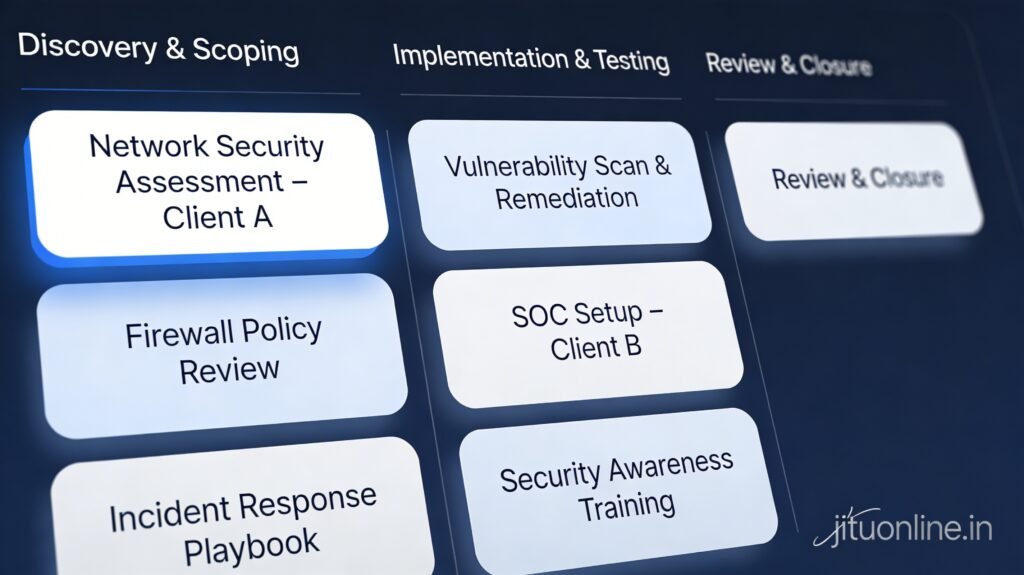
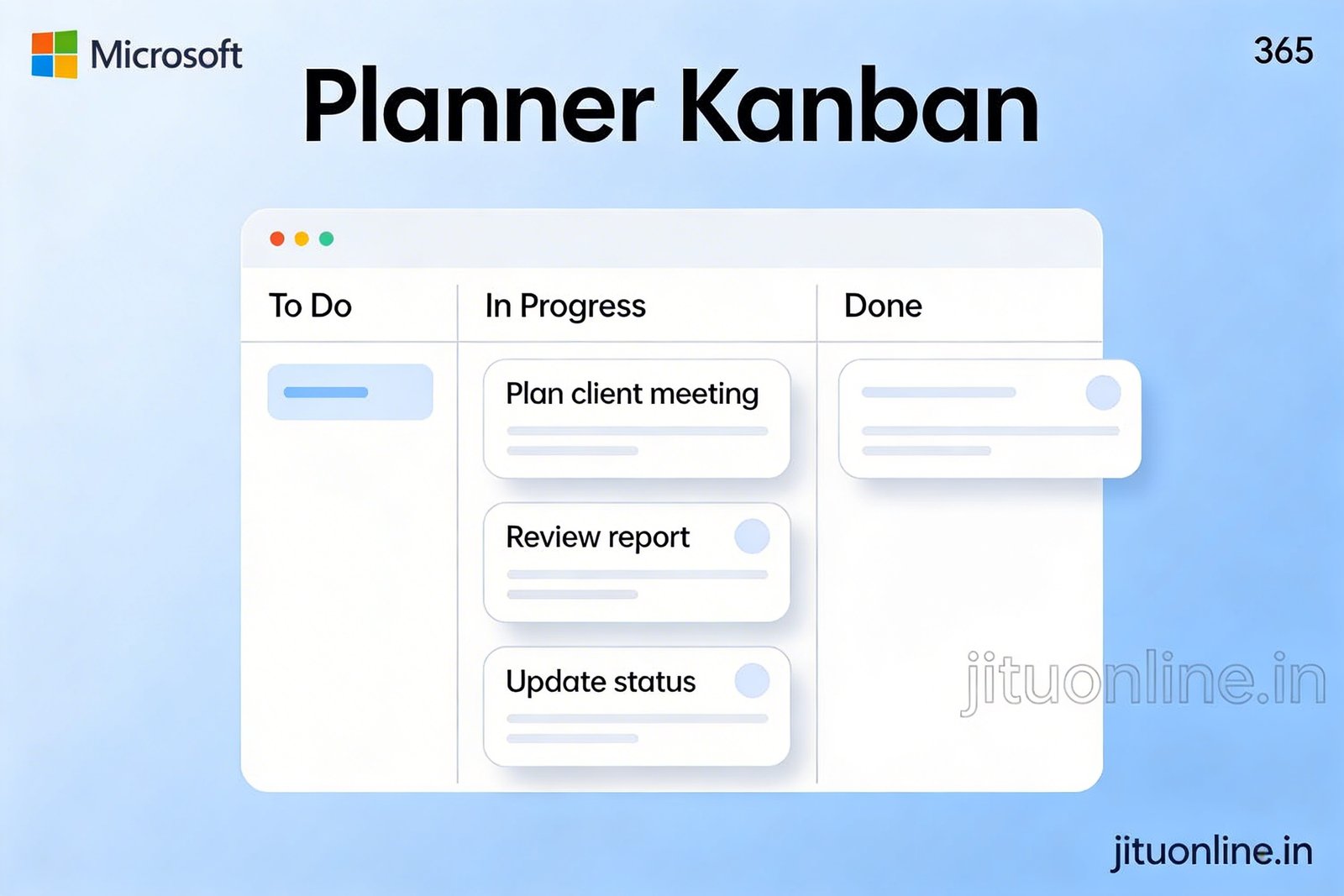
For small consulting firms that juggle IT consulting, regulatory/compliance engagements, and AI‑automation projects, Microsoft Planner can be your lightweight “mission control” without the overhead of heavy project‑management platforms. Planner sits inside Microsoft 365, integrates with Teams and Outlook, and lets you manage multiple client engagements, track deliverables, and keep partners aligned, all on a single card‑based board.
In this post, we shall explore how a small consulting team can structure Planner for client work, plus how to use and extend Planner’s built‑in templates to create your own consulting blueprints.
When Planner fits a small consulting practice
If your team is 3–8 consultants working across IT, compliance (FATF/AML/KYC), and AI/automation, Planner is ideal when:
- You create one plan per client engagement (e.g.,
Client A – IT Audit,Client B – AI Automation). - You standardize the consulting lifecycle (Discovery → Planning → Execution → Review → Closure) across plans.
- Tasks are clearly assigned to the right consultant (IT, compliance, or AI) with due dates and labels such as
High priority,Regulatory Deadline, orAI‑Model‑Training.
This approach reduces email threads, WhatsApp groups, and manual status updates while keeping everyone confident about what’s going on.
Example 1: IT consulting engagement
Plan name: Client X – IT Infrastructure Review
Buckets:
Discovery & ScopingAssessment & TestingReporting & RecommendationsClient ReviewClosed
Sample tasks:
Gather current IT environment details- Assignee: IT Consultant
- Due date: 1 week
- Bucket:
Discovery & Scoping - Labels:
Data‑collection,Client‑facing
Perform vulnerability scan and network assessment- Assignee: IT Consultant
- Due date: 2 weeks
- Bucket:
Assessment & Testing
Draft IT review report with action plan- Assignee: Lead Consultant / Partner
- Due date: 3 weeks
- Bucket:
Reporting & Recommendations
Using the Timeline view, the managing partner can see how assessments, meetings, and report writing overlap and adjust deadlines before the client review.
Example 2: Compliance & regulatory consulting
Plan name: Client Y – FATF / AML Compliance Review
Compliance projects often have tight regulatory windows and detailed checklists, so Planner becomes a checklist‑centric workspace.
Buckets:
Gap AnalysisPolicy DraftingControl ImplementationAudit & EvidenceSubmission & Closure
Sample tasks:
Map current AML policies to FATF requirements- Assignee: Compliance Consultant
- Due date: 10 business days
- Bucket:
Gap Analysis - Labels:
Regulatory,High priority
Draft updated KYC procedure- Assignee: Compliance Consultant
- Due date: 15 days
- Bucket:
Policy Drafting - Checklist:
- Draft procedure
- Get legal review
- Finalize with client
Collect evidence for auditors- Assignee: Engagement Manager
- Due date: 1 week before audit
- Bucket:
Audit & Evidence
The People view helps the partner see who is overloaded across multiple compliance engagements and rebalance work before audit deadlines.
Example 3: AI / automation consulting
Plan name: Client Z – AI Automation for Finance Processes
AI‑automation projects blend discovery, data analysis, and pilot‑run phases, so Planner becomes your cross‑functional tracking layer.
Buckets:
Discovery & Use‑caseData & Process AnalysisAutomation DesignBuild & TestPilot & TrainingHandover & Closure
Sample tasks:
Identify top 3 candidate processes for automation- Assignee: AI Consultant
- Due date: 1 week
- Bucket:
Discovery & Use‑case
Map existing invoice‑approval workflow- Assignee: Process Analyst
- Due date: 2 weeks
- Bucket:
Data & Process Analysis
Design automation workflow (Power Automate / custom scripts)- Assignee: AI / Automation Engineer
- Due date: 3 weeks
- Bucket:
Automation Design
Run pilot with finance team- Assignee: Project Lead + AI Consultant
- Due date: 4 weeks
- Bucket:
Pilot & Training
The Timeline and People views help you visualize how data‑gathering, design, and testing phases overlap and ensure AI, IT, and process consultants stay aligned on handover dates.
Out‑of‑the‑box Planner templates
Microsoft Planner ships with several built‑in plan templates that you can adapt for consulting work:
- Simple Task List
- Basic buckets:
To Do,In Progress,Done. - Useful for ad‑hoc internal projects (e.g., “Internal AI training rollout”).
- Basic buckets:
- Simple Project
- Adds
Backlog,To Do,In Progress,Done. - Fits short‑term client engagements or quick compliance checks.
- Adds
- Agile Task Board
- Resembles Scrum:
Product Backlog,Sprint Backlog,Doing,Done. - Works well for AI‑automation or software‑related consulting where you run in sprints.
- Resembles Scrum:
- Content Calendar
- Time‑based buckets:
Draft,Review,Scheduled,Published. - Useful if your consulting firm runs thought‑leadership content or client newsletters.
- Time‑based buckets:
When you create a new plan, you can select a template and then rename buckets and labels to match your consulting workflow (e.g., Discovery, Planning, Execution, Review, Closed).
How to extend and reuse Planner templates
Planner doesn’t expose a deep “template engine,” but you can create your own consulting blueprints and reuse them across projects.
1. Build a template plan once
- Create a detailed plan for a common engagement type (e.g.,
Template – IT Audit). - Set up the buckets, labels, and a generic set of tasks (requirements‑gathering, assessment, reporting, etc.).
- Use generic roles for assignees (e.g.,
IT Consultant,Compliance Lead) instead of real people.
2. Copy the template for new clients
- Open the template plan → click the **- – – ** menu → Copy plan.
- Name it for the new client (e.g.,
Client A – IT Audit – 2026). - Update task details, due dates, and real assignees for that engagement.
This gives you reusable templates for IT audits, compliance reviews, and AI‑automation projects while staying within Planner’s native features.
3. Enhance with Microsoft 365 and automation
- Link your Planner plans to Teams channels for each client so discussions, tasks, and files live together.
- Use Power Automate or Copilot Studio to auto‑create Planner tasks from intake forms, SharePoint lists, or email triggers (e.g., when a new compliance request is submitted).
- Connect Planner to Outlook Tasks so consultants can track personal to‑dos alongside project work.
Recommended setup for consulting team
For a small consulting practice handling IT, compliance, and AI automation, we recommend:
- One plan per client engagement.
- One plan per internal capability (e.g.,
AI Lab Projects,Compliance Training Pipeline). - Standardized bucket sequences for each service line:
- IT:
Discovery,Assessment,Reporting,Client Review,Closed - Compliance:
Gap Analysis,Policy Drafting,Control Implementation,Audit & Evidence,Closure - AI/Automation:
Discovery,Data Analysis,Design,Build & Test,Pilot,Handover
- IT:
Use common labels such as:
- Service lines:
IT‑Consulting,Compliance,AI‑Automation - Risk/priority:
High Priority,Regulatory Deadline,Client‑Facing
Each week, run a 15‑minute Planner standup where the managing partner reviews:
- The Board and Timeline to spot overdue or at‑risk tasks.
- The People view to detect overload and balance workloads.
- The bucket flow to confirm projects are moving smoothly from discovery to closure.
Hope this topic provides enough information for you to start using Microsoft Planner effectively.

At JituOnline dot in, he explores the intersection of cutting-edge technology and human lifestyle... whether it's decoding the latest AI models or reviewing the gadgets that define our era, his mission is to make the "limitless realm" of tech accessible to everyone... Join him as he uncovers how tomorrow’s automation elevates today’s living...
- Python’s Magic: How Few Lines of Code Replace Big Code Blocks in Other Languages - June 16, 2026
- Software Development Tools in 2026: What’s Hot, What’s Out - June 1, 2026
- Monthly Roundup of AI Tools in May 2026 - June 1, 2026