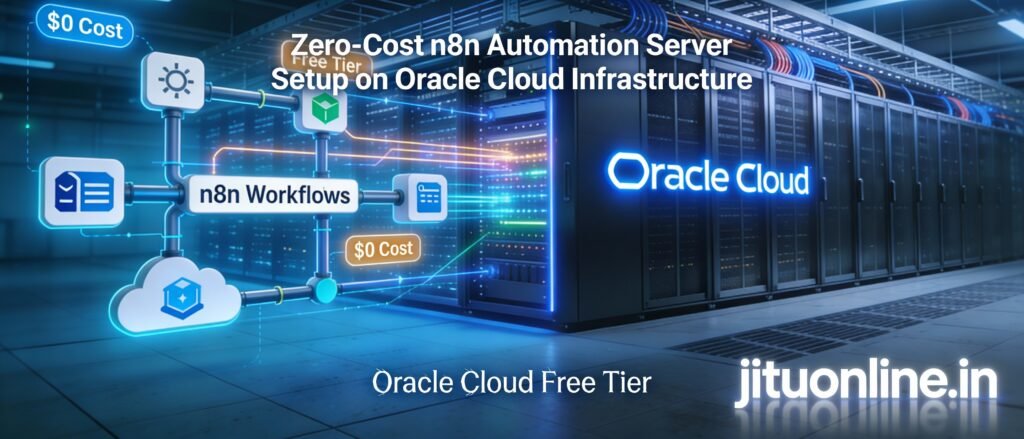
This guide documents the journey of setting up a production-grade automation server. We will cover the infrastructure, the security hurdles, and the final “gotchas” that often trip up even experienced developers.
1. The Infrastructure: Oracle Cloud “Always Free”
Oracle’s ARM-based instances (Ampere) provide a massive 4 vCPUs and 24GB of RAM—more than enough to run n8n alongside complex Python scripts for image processing or data scraping.
- Instance: VM.Standard.A1.Flex
- OS: Oracle Linux 9
- Target URL:
https://n8n.yourdomain.com
2. Layer 1: The Network Firewall
Oracle Cloud uses a dual-layer firewall. You must open the ports in the OCI Dashboard, and then again inside the Linux OS.
A. OCI Security List
In your VCN Security List, add Ingress Rules for:
- Port 80 (TCP): For SSL certificate validation.
- Port 443 (TCP): For secure HTTPS access.
- Port 5678 (TCP): The internal n8n communication port.
B. Linux Internal Firewall (iptables)
Oracle Linux has a strict default “Reject” policy. Since Docker manages its own network chains, you need to insert rules specifically into the DOCKER-USER chain.
Bash
# Allow external traffic to reach the HTTPS and n8n ports
sudo iptables -I DOCKER-USER -p tcp --dport 443 -j ACCEPT
sudo iptables -I DOCKER-USER -p tcp --dport 5678 -j ACCEPT

# Save rules to ensure they survive a server reboot
sudo iptables-save | sudo tee /etc/sysconfig/iptables
3. Layer 2: Docker Deployment with Persistence
We use Docker for isolation. Crucially, we map a “Volume” from the host to the container so your workflows, credentials, and settings are never lost if the container is updated or deleted.
Bash
# Create the local directory for data
mkdir -p /home/opc/.n8n

# Run the n8n container in Production Mode
docker run -d \
  --name n8n \
  -p 5678:5678 \
  -e N8N_HOST="n8n.yourdomain.com" \
  -e N8N_PROTOCOL="https" \
  -e NODE_ENV="production" \
  -e WEBHOOK_URL="https://n8n.yourdomain.com/" \
  -v /home/opc/.n8n:/home/node/.n8n \
  --restart always \
  n8nio/n8n
4. Layer 3: SSL & Reverse Proxy (The Python Fix)
To get that green padlock (HTTPS), we use Nginx as a reverse proxy and Certbot for SSL.
The Challenge: Oracle Linux 9 repos often struggle with Certbot dependencies.
The Solution: Use a Python Virtual Environment to install Certbot cleanly.
Bash
# 1. Install Nginx
sudo dnf install -y nginx
sudo systemctl enable --now nginx

# 2. Deploy Certbot via Python Venv
sudo python3 -m venv /opt/certbot/
sudo /opt/certbot/bin/pip install --upgrade pip
sudo /opt/certbot/bin/pip install certbot certbot-nginx
sudo ln -s /opt/certbot/bin/certbot /usr/bin/certbot
Nginx Configuration
Create a config file at /etc/nginx/conf.d/n8n.conf:
Nginx
server {
    listen 80;
    server_name n8n.yourdomain.com;

    location / {
        proxy_pass http://127.0.0.1:5678;
        proxy_set_header Host $host;
        proxy_set_header X-Real-IP $remote_addr;
        proxy_set_header X-Forwarded-For $proxy_add_x_forwarded_for;
        proxy_set_header X-Forwarded-Proto $scheme;
        proxy_set_header Upgrade $http_upgrade;
        proxy_set_header Connection "Upgrade";
    }
}
Generate the SSL Certificate:
Bash
sudo systemctl restart nginx
sudo certbot --nginx -d n8n.yourdomain.com
5. The “Final Boss”: SELinux & 502 Bad Gateway
Even with Nginx and Docker running, you may see a 502 Bad Gateway. This is SELinux preventing Nginx from initiating a network connection to your Docker container.
The Fix:
Bash
# Allow Nginx to act as a network proxy
sudo setsebool -P httpd_can_network_connect 1
6. Conclusion: The Result
After these steps, you have a fully automated, self-healing, and secure instance of n8n.
- Auto-Updates: Your certificate renews via a cron job.
- Security: All Webhooks and logins are encrypted via TLS.
- Scalability: With 24GB of RAM, you can run dozens of parallel AI and Python-heavy workflows.

At JituOnline dot in, he explores the intersection of cutting-edge technology and human lifestyle... whether it's decoding the latest AI models or reviewing the gadgets that define our era, his mission is to make the "limitless realm" of tech accessible to everyone... Join him as he uncovers how tomorrow’s automation elevates today’s living...
- Python’s Magic: How Few Lines of Code Replace Big Code Blocks in Other Languages - June 16, 2026
- Software Development Tools in 2026: What’s Hot, What’s Out - June 1, 2026
- Monthly Roundup of AI Tools in May 2026 - June 1, 2026