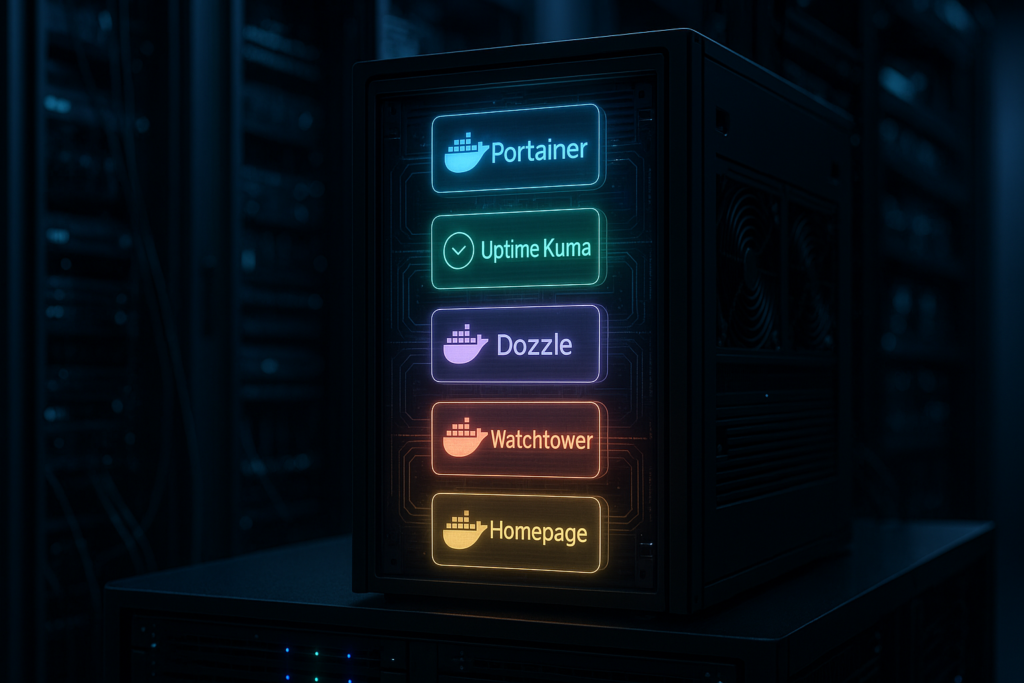
Whenever I bring a new server online, whether it’s a home lab node, a VPS, or a production machine, there are five Docker containers that go in first, before any app workloads. These are my “base layer” for observability, management, security hygiene, and day‑to‑day operations.
They don’t replace good DevOps practices, but they make everything that comes next faster, safer, and easier to debug. Once these are running, deploying reverse proxies, databases, and application stacks becomes much more predictable.
The five containers are:
- Portainer – Docker management UI
- Uptime Kuma – uptime and health monitoring
- Dozzle – real‑time container log viewer
- Watchtower – automated container updates
- Homepage (or Dashy) – unified server dashboard
At the end, I’ll also share 3 “bonus” containers I often add next.
Why I always start with these 5
Before diving into each container, it’s worth clarifying the philosophy. On a fresh server, I want four things as early as possible:
- A management plane so I’m not SSHing in for every small change.
- Uptime and health checks so I know if things are actually reachable, not just “running.”
- Fast access to logs so I can see what’s happening without juggling
docker logs. - Basic automation for updates and a single pane of glass for everything I deploy later.
These five containers achieve that with very little resource overhead, and they scale from a single tiny VPS to a small fleet of servers.
1. Portainer – the control tower for Docker
Portainer is always my first install because it gives me a clean, browser‑based control panel for Docker (and even Kubernetes) across multiple environments.
With a single Portainer instance you can:
- View and manage containers, images, volumes, and networks from a web UI.
- Deploy full stacks using Docker Compose files, Git repositories, or a built‑in editor.
- Connect and manage multiple Docker hosts and Kubernetes clusters from one place.
- Define users, teams, and role‑based access control to safely share access.
Portainer talks directly to the Docker socket, which means it has real‑time visibility into everything running on the host. For a homelab, it’s a nice quality‑of‑life upgrade; for a small production setup, it’s a genuine operations tool.
Example Portainer docker-compose.yml
services:
  portainer:
    image: portainer/portainer-ce:latest
    container_name: portainer
    restart: unless-stopped
    ports:
      - "9443:9443"
    volumes:
      - /var/run/docker.sock:/var/run/docker.sock
      - portainer_data:/data

volumes:
  portainer_data:
After you run docker compose up -d, open https://your-server:9443, create the initial admin user, and connect your local Docker environment or remote endpoints. From here you can visually inspect containers, check logs, tweak environment variables, and redeploy stacks without living in the terminal.
How I actually use Portainer
- Day 0: Sanity‑check Docker is healthy, create base networks/volumes, and prepare the environment.
- Day to day: Quickly restart services, inspect container logs, roll out compose stacks from Git.
- Multi‑host: Centralize multiple hosts (e.g., your Kuwait VPS, home lab nodes, and edge servers) in one UI.
2. Uptime Kuma – “is everything actually up?”
Once I have control, I want assurance. A container being “up” is meaningless if the service is not responding or TLS is broken, so I add Uptime Kuma very early.
Uptime Kuma is a self‑hosted uptime monitoring platform that lets you track HTTP(S), TCP, ICMP (ping), DNS, and more. It raises alerts when services go down and gives you basic performance insights.
What I like about it:
- Supports multiple monitor types: HTTP(S), TCP, ping, DNS, and more.
- Integrates with lots of notification channels like email, Telegram, Slack, Discord, and webhooks.
- Shows response time graphs and history, not just “up/down” flags.
- Simple, modern UI that even non‑technical stakeholders can understand.
Example Uptime Kuma docker-compose.yml
services:
  uptime-kuma:
    image: louislam/uptime-kuma:latest
    container_name: uptime-kuma
    restart: unless-stopped
    ports:
      - "3001:3001"
    volumes:
      - uptime_kuma_data:/app/data

volumes:
  uptime_kuma_data:
Once it’s running at http://your-server:3001, I immediately add checks for:
- Portainer (to ensure the management plane is reachable).
- The reverse proxy / main domain (once I deploy it).
- Critical internal services such as APIs, databases (TCP check), and admin dashboards.
Over time, Uptime Kuma becomes the living history of your environment’s health and is usually the first place I check when someone says, “The site feels slow.”
3. Dozzle – real‑time logs without friction
You can get far with docker logs, but as your server fills up with containers, hopping between shells and adding flags like -f and --tail becomes tedious. Dozzle solves this by providing a lightweight, real‑time log viewer in the browser.
With Dozzle you can:
- See logs from all containers in one place.
- Tail logs in real time while reproducing issues.
- Search and filter by text to quickly spot errors or stack traces.
It reads Docker logs through the Docker socket and does not require a heavy logging stack. For early‑stage setups, it’s the perfect “first responder” tool for debugging.
Example Dozzle docker-compose.yml
services:
  dozzle:
    image: amir20/dozzle:latest
    container_name: dozzle
    restart: unless-stopped
    ports:
      - "9999:8080"
    volumes:
      - /var/run/docker.sock:/var/run/docker.sock
After deployment, open http://your-server:9999, pick a container, and you’ll see logs streaming in real time. When something feels off, my usual workflow is:
- Open Uptime Kuma to see what’s failing.
- Jump to Dozzle for the relevant container.
- Tail logs live while testing the service or restarting it via Portainer.
For production‑grade setups, I still recommend central log aggregation (Loki, ELK, etc.), but Dozzle remains my go‑to for quick diagnostics on every server.
4. Watchtower – automated container updates
Once the basics are running, the next operational headache is keeping containers up to date. Manually pulling new images, stopping containers, and redeploying them across multiple servers gets old fast.
Watchtower automates this. It monitors your running containers, checks for newer images, pulls them, and recreates the containers with the same parameters.
Why I like using Watchtower (with care):
- Automatically pulls new images from registries on a schedule.
- Recreates containers with the same environment variables, volumes, and ports.
- Can be configured with cron‑style schedules to control when updates happen.
- Supports notifications to inform you about what was updated and when.
Basic Watchtower docker-compose.yml
services:
  watchtower:
    image: containrrr/watchtower:latest
    container_name: watchtower
    restart: unless-stopped
    volumes:
      - /var/run/docker.sock:/var/run/docker.sock
    command: --interval 86400
This checks for image updates every 24 hours and updates all containers by default.
In more sensitive environments, I adjust the strategy:
- Restrict Watchtower to a subset of containers using
--include/--label-enable. - Run it with a cron‑like schedule during low‑traffic windows.
- Enable notifications (Slack, email, etc.) to review updates and roll back if needed.
Used smartly, Watchtower gives you a safety net against outdated images without turning your environment into a chaos monkey.
5. Homepage (or Dashy) – a single pane of glass
The last of my core five is a dashboard. When you have multiple servers and dozens of services, you need a central “control room” that shows what exists and how to reach it.
I typically use Homepage (gethomepage) or Dashy for this role. Both are highly customizable, self‑hosted dashboards that link all your applications, show status, and can surface some basic metrics and health.
Why a dashboard belongs in the first five
- Gives you and your team a single URL with links to all services, including internal ones.
- Makes onboarding new people easier—no more “bookmark these 15 URLs manually.”
- Often supports health indicators and integrations with popular self‑hosted apps.
- Looks clean enough that you can use it as your default browser start page.
Example Homepage docker-compose.yml
services:
  homepage:
    image: ghcr.io/gethomepage/homepage:latest
    container_name: homepage
    restart: unless-stopped
    ports:
      - "3000:3000"
    volumes:
      - ./config:/app/config
      - /var/run/docker.sock:/var/run/docker.sock
Homepage supports configuration via YAML files and can auto‑discover services using Docker labels. You can group links by environment (prod, staging, lab), by function (databases, observability, tools), or by team.
A common pattern:
- Management – Portainer, Uptime Kuma, Dozzle, Watchtower UI (if any), your reverse proxy dashboard.
- Apps – APIs, admin panels, frontends, CMS, internal tools.
- Infra – database UIs, object storage consoles, monitoring stacks.
In practice, Homepage or Dashy quickly becomes your “map” of the server, especially when you manage multiple machines across different locations.
Quick overview table
Here’s a summary of how these five containers fit into your baseline stack: Container Role What it gives you early on Portainer Management UI Visual control of containers, stacks, volumes, and endpoints. Uptime Kuma Uptime monitoring External checks and alerts for service availability. Dozzle Log viewer Real‑time, browser‑based access to container logs. Watchtower Update automation Scheduled image updates and controlled container restarts. Homepage / Dashy Dashboard Central entry point and “map” of all your services.
| Container | Role | What it gives you early on |
|---|---|---|
| Portainer | Management UI | Visual control of containers, stacks, volumes, and endpoints. |
| Uptime Kuma | Uptime monitoring | External checks and alerts for service availability. |
| Dozzle | Log viewer | Real‑time, browser‑based access to container logs. |
| Watchtower | Update automation | Scheduled image updates and controlled container restarts. |
| Homepage / Dashy | Dashboard | Central entry point and “map” of all your services. |
3 bonus containers I often add next
The five above are my non‑negotiable baseline. After that, there are three more containers I reach for very early on, especially when I know the server will run serious workloads.
Bonus 1: Traefik or Nginx Proxy Manager – reverse proxy and SSL
A proper reverse proxy is crucial once you move beyond “a couple of test containers.” I usually deploy either Traefik or Nginx Proxy Manager as my ingress layer.
What this layer does:
- Routes requests from a single IP/domain to multiple internal services based on hostname or path.
- Terminates TLS, handles certificates (e.g., Let’s Encrypt), and simplifies HTTPS everywhere.
- Provides a central point for access control, rate limiting, and other web‑level concerns.
Traefik is extremely Docker‑friendly: you can configure routing rules via labels on your containers. Nginx Proxy Manager is more GUI‑driven and beginner‑friendly, which is great if you prefer a visual interface to manage hosts and certificates.
Once the proxy is up, I move most “:port” access (like :3000, :3001, :9999) behind proper subdomains with HTTPS, which is cleaner, safer, and easier to expose to clients or teammates.
Bonus 2: cAdvisor or Netdata – metrics and resource monitoring
While Uptime Kuma tells you if something is up, you also need to know how the server is behaving internally. That’s where metrics containers like cAdvisor or Netdata come in.
Typical benefits:
- See CPU, RAM, disk, and network usage per container and per host.
- Identify noisy neighbors when one container saturates the system.
- Track long‑term trends for capacity planning and scaling decisions.
cAdvisor is lightweight and integrates nicely with Prometheus/Grafana if you already have that stack. Netdata is more of an all‑in‑one interactive dashboard with beautiful real‑time charts and built‑in alarms.
For a single VPS or home lab node, even a basic metrics container can save hours of guesswork when performance starts degrading.
Bonus 3: Duplicati / restic-based backup container – backups for volumes
Finally, no baseline setup is complete without backups. Docker makes it easy to forget that your “data” lives in volumes and host paths that still need to be backed up reliably.
I usually add a backup container that can:
- Back up Docker volumes and critical configuration directories.
- Push backups to remote storage (S3‑compatible, Backblaze, NAS, etc.).
- Run on a schedule and keep a rotation of historical snapshots.
Popular choices include Duplicati and containers wrapping restic or similar tools. The key is to decide:
- What you must be able to restore quickly (databases, app data, configs).
- Where backups should live (object storage, another server, external disk).
- How often you can afford to run them (based on size and bandwidth).
Once you configure this, combine it with Uptime Kuma checks or simple cron notifications.
In future posts, we can talk in detail about each tool separately, till then Happy Cloud Computing
References
- Portainer – Container management platform: https://www.portainer.io
- Using Portainer with Docker and Docker Compose: https://earthly.dev/blog/portainer-for-docker-container-management/
- Uptime Kuma project page: https://github.com/louislam/uptime-kuma
- Dozzle project page: https://github.com/amir20/dozzle
- Watchtower image and docs: https://containrrr.dev/watchtower/
- Homepage (gethomepage) project: https://github.com/gethomepage/homepage
- Dashy project: https://github.com/Lissy93/dashy
- Traefik as a reverse proxy for Docker: https://doc.traefik.io/traefik/
- Nginx Proxy Manager: https://nginxproxymanager.com/
- cAdvisor container monitoring: https://github.com/google/cadvisor
- Netdata monitoring: https://www.netdata.cloud/
- Duplicati backups: https://www.duplicati.com/
- restic backup tool: https://restic.net/

At JituOnline dot in, he explores the intersection of cutting-edge technology and human lifestyle... whether it's decoding the latest AI models or reviewing the gadgets that define our era, his mission is to make the "limitless realm" of tech accessible to everyone... Join him as he uncovers how tomorrow’s automation elevates today’s living...
- Essential Docker Containers for AI Automation - April 5, 2026
- The Build vs. Buy Dilemma: A Modern Framework for Smarter Decisions - March 28, 2026
- Microsoft Planner for Small Consulting Firms IT Compliance AI Projects - March 26, 2026